9 min read
How to Share a Custody Calendar Without Sharing Everything Else
A shared custody calendar can keep exchanges on track without exposing your whole life. Here is how co-parents set boundaries that actually hold.
The OFWSync team
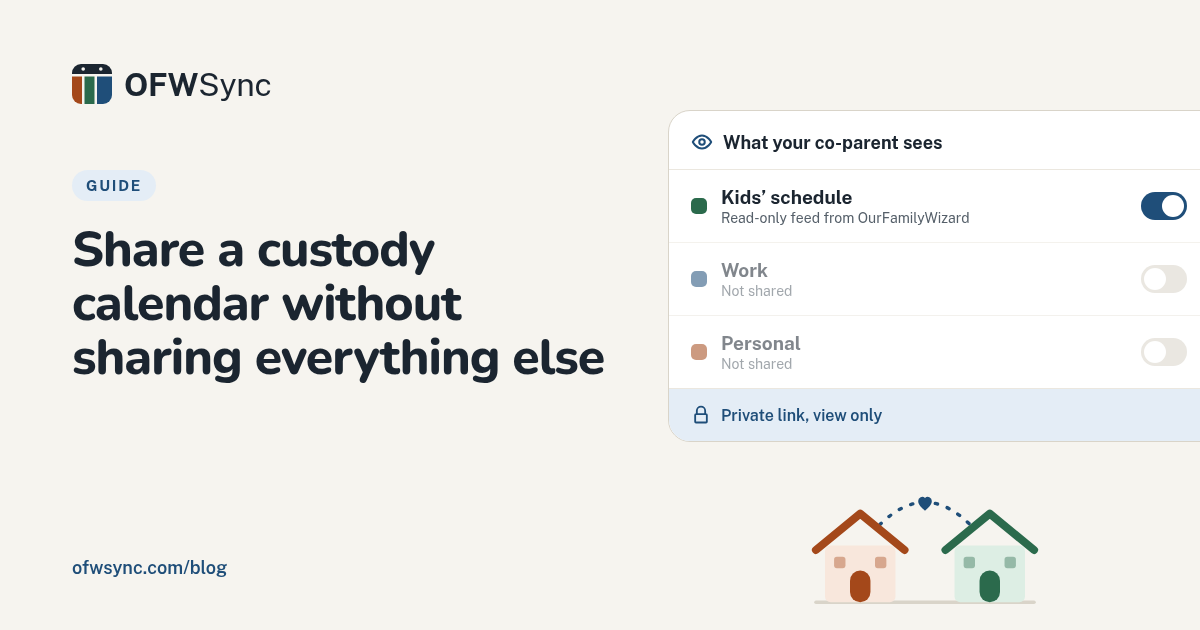
Quick Summary: Sharing your full calendar with a co-parent can expose work meetings, personal plans and medical appointments alongside the actual custody exchanges. The fix is a read-only subscription feed from OurFamilyWizard that pulls only parenting time, trades and shared events into Google, Apple or Outlook as a separate calendar, leaving messages, expenses and your private life untouched. OFWSync does exactly this for $3 to $5 per month, with daily or hourly checks, and the link should be treated like a password so only co-parents, grandparents or babysitters you trust can view it.
Handing the other parent a full calendar invite seems harmless. It is not. That one move can expose your work meetings, doctor's visits and personal plans along with every custody exchange date.
A shared custody calendar should show only the kids' schedule, nothing else. This guide shows how to set up a custody schedule in Google Calendar that stays separate from your private life, plus the same setup for Apple Calendar and Outlook.
You will learn what a shared co-parenting calendar should never contain, how to keep OurFamilyWizard as your court record while the schedule shows up where you look, and how a read-only feed keeps the two apart.
Table of Contents
- Step 1: Decide What Stays in OurFamilyWizard and What Moves to Your Calendar
- Step 2: Set Up the Read-Only Subscription Feed
- Step 3: Add the Feed to Google, Apple or Outlook as a Separate Calendar
- Step 4: Share the Feed the Right Way (and the Wrong Way)
- Step 5: Maintain the Feed So the Calendar Stays Accurate
- Common Mistakes to Avoid When Sharing a Custody Calendar
- Frequently Asked Questions
- Conclusion
Step 1: Decide What Stays in OurFamilyWizard and What Moves to Your Calendar
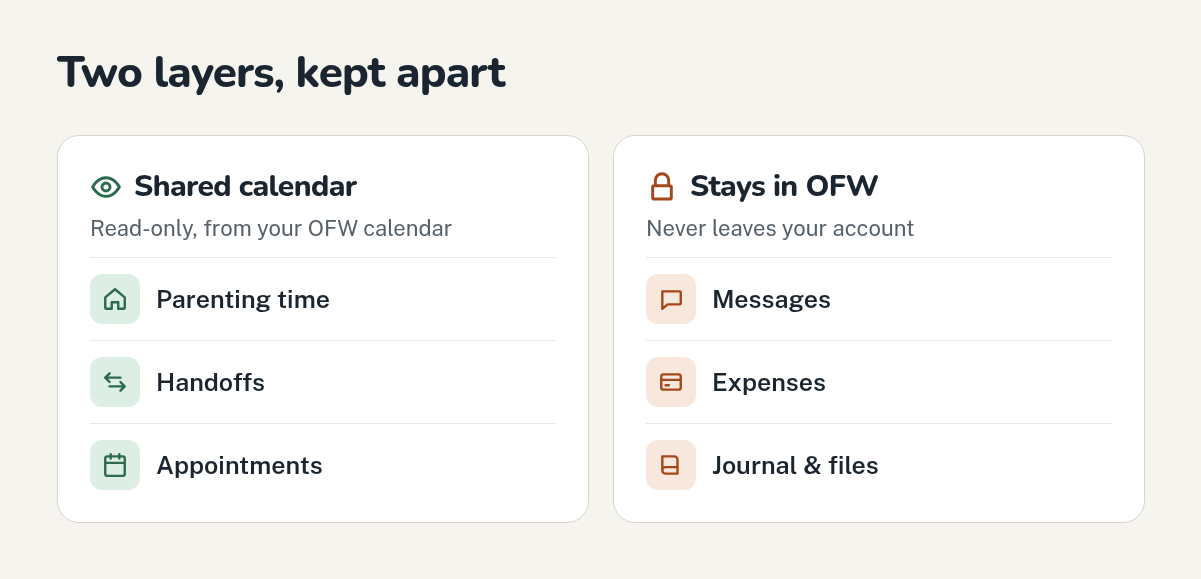
Split your life into two layers before you sync anything. Your OurFamilyWizard account holds the official record: the shared custody calendar, trades, and anything a court might ask about. Your personal calendar holds everything else, from dentist visits to date nights.
What a Read-Only Feed Actually Exposes
A read-only feed pulls your custody calendar out of OurFamilyWizard without giving anyone access to the account itself. Whoever subscribes sees only the entries the feed includes: parenting time, approved trades, and shared events. They cannot see your messages, journal entries, or expense records, and they cannot post anything back. That matters when your ex wants the schedule but your attorney wants the record untouched. It also matters for you. Because a feed lands as its own calendar, the custody schedule sits beside your work and personal events instead of being copied into them, so nothing private leaks back the other way.
Keep OFW as the Source of Truth When a Court Says So
Courts trust OurFamilyWizard because it logs messages and keeps records they can review, which is why it's widely used in family law (Naro Law). If your order names it, keep making changes there. A synced copy is for convenience, never a substitute for the official account.
Step 2: Set Up the Read-Only Subscription Feed
Connect OurFamilyWizard and Choose What Comes Across
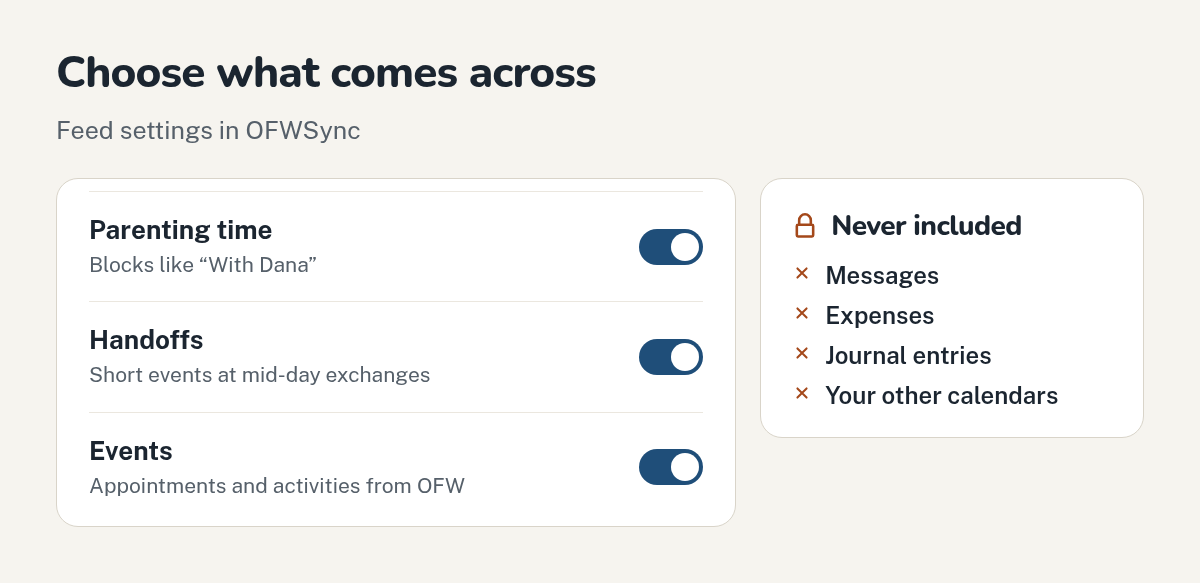
Once you have your accounts separate, the next job is moving the schedule itself. A sync service connects to your OurFamilyWizard calendar and turns its entries into a standard iCalendar feed. With OFWSync you choose what travels: parenting time blocks, handoffs at exchanges, and OFW events like doctor visits. Messages, journal entries, and expense records never come across.
Because the feed becomes its own calendar, your custody schedule sits apart from work meetings and personal plans. Nothing from your other calendars flows back, and the service never writes to OurFamilyWizard, so the official record stays untouched.
Generate the Private Feed Link and Pick a Plan
After connecting, the service generates a private link only you hold. Paste it into Google Calendar, Apple Calendar, or Outlook and the custody calendar appears as a read-only layer, refreshed automatically.
| Plan | Price | Checks OFW |
|---|---|---|
| Lite | $3/month or $30/year | Once a day |
| Plus | $5/month or $40/year | Every hour |
Both plans start with a 7-day free trial. If trades and changes land often, hourly checks keep your custody calendar current between pickups. Treat the link like a house key: share it only with people you trust, and create a new one from your feed settings if it leaks. The old link stops working right away.
Step 3: Add the Feed to Google, Apple or Outlook as a Separate Calendar
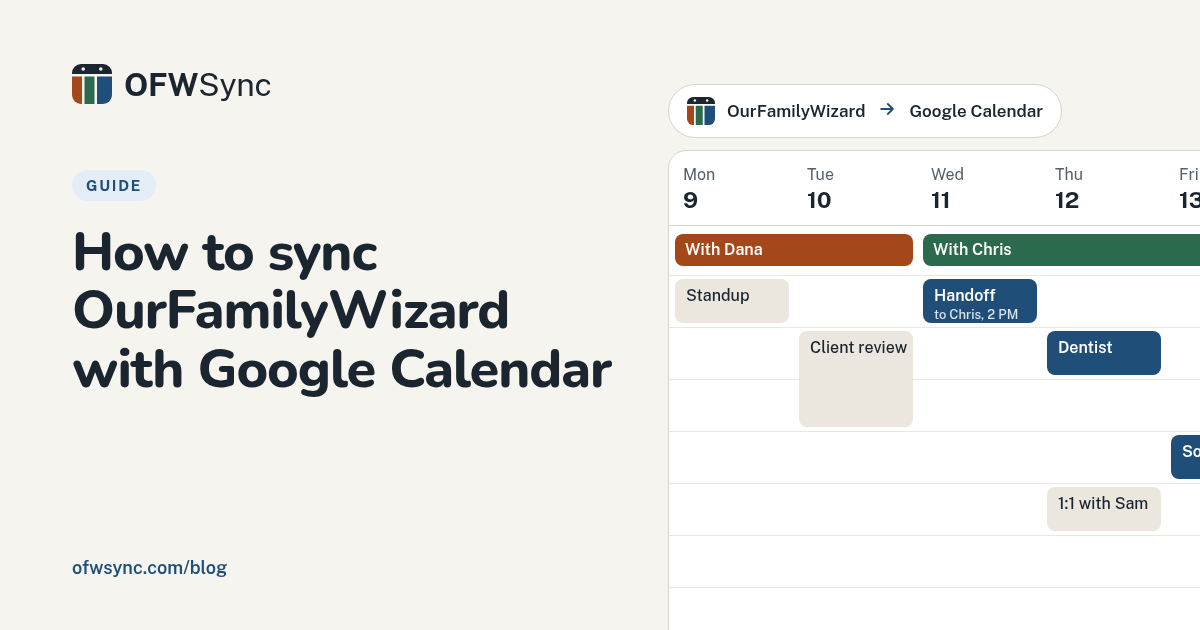
Subscription links work everywhere, but the setup differs by app. The key move in each is adding it as a new calendar, not importing events into your main one. A separate calendar keeps the kids' schedule isolated, so nothing about your work, dating life, or appointments leaks the other way. For a full walkthrough of the Google side, see our guide on syncing OurFamilyWizard with Google Calendar.
Subscribe in Google Calendar (Other Calendars > From URL)
Open Google Calendar on a computer, not the phone app. On the left, click the plus sign next to Other calendars, then choose From URL. Paste your feed link and click Add calendar. Google refreshes subscribed calendars on its own schedule, usually within a day, so don't expect instant updates. On your phone, open the Calendar app settings and make sure the new calendar is set to show.
Subscribe in Apple Calendar (File > New Calendar Subscription)
On a Mac, open Calendar and choose File > New Calendar Subscription. Paste the feed URL, click Subscribe, then set the auto-refresh to every hour if you want faster updates. Name it something plain like "Kids Schedule" and pick a distinct color. Choose iCloud as the location so it also appears on iPhone and iPad, and you can toggle it off without touching your personal calendars.
Add the Feed in Outlook (Add Calendar > Subscribe from Web)
In Outlook on the web, click the calendar icon, then Add calendar > Subscribe from web. Paste the URL, give it a name, and save. Because it's a subscription, Outlook pulls updates automatically and the feed stays read-only. Your own entries never travel back to anyone.
If you see only a one-time copy of the schedule, you imported instead of subscribed. Delete it and redo the steps with From URL, New Calendar Subscription, or Subscribe from web, so future trades and changes flow in on their own.
Step 4: Share the Feed the Right Way (and the Wrong Way)
Giving the Same Feed to a Co-Parent, Babysitter or Grandparent
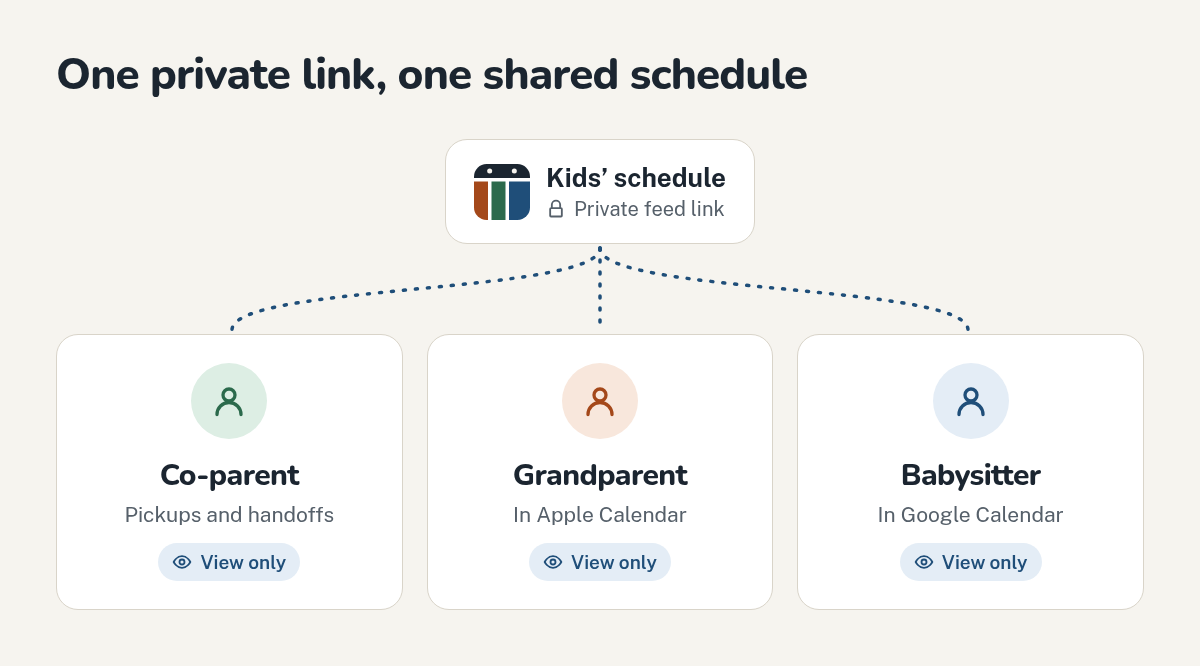
A subscription link is read-only, so anyone you give it to can see the schedule but never change it. Grandparents can subscribe in Apple Calendar, a babysitter can pull it into Google Calendar, and your co-parent can see pickups without logging into anything new. One link, one schedule, multiple households. Anyone with the link can view it, so share it only with people who need the schedule, as co-parents who use read-only feeds often note. In a high-conflict situation, hand the link over directly rather than in a long email thread.
What Not to Do With a Shared Custody Calendar
Don't paste the feed link into a group chat, email thread or public post. Treat it like a password. Don't merge the custody calendar with your personal calendar, either, because a merged view can leak appointments, trips and dates to whoever sees the shared calendar. Keep it as a separate calendar so you control exactly what's exposed. Never share your OurFamilyWizard login itself; the feed exists so you don't have to. Think about whether event locations, like a child's activity address, should travel to everyone who holds the link; if not, keep the link to fewer people. And don't edit entries directly in the synced calendar; fix the schedule in OurFamilyWizard so your official record stays accurate.
Step 5: Maintain the Feed So the Calendar Stays Accurate
Edit in OurFamilyWizard, Not in Your Calendar
Your Google, Apple, or Outlook calendar is a copy, and the subscription feed is read-only. So when a trade gets approved or a soccer practice moves, make the change in OurFamilyWizard, the record of truth. OFWSync rechecks your OFW calendar once a day on Lite or every hour on Plus, so approved changes flow to your phone without you touching anything.
Cancel or Reset the Link Without Touching OFW
To stop seeing the schedule, delete the subscription from your calendar app; OurFamilyWizard itself stays untouched, which matters if a court relies on your account history. To cut off everyone who holds the link, create a new one in your OFWSync feed settings: the old link stops working immediately, and you share the new one only with the people who still need it. If a feed ever stops updating, check your OFWSync dashboard before assuming something broke.
Common Mistakes to Avoid When Sharing a Custody Calendar
Quick Checklist Before You Hand Over the Link
Most privacy slips come from a few habits. Fix these and you're nearly done:
- Sending your whole personal calendar instead of a separate calendar that holds only parenting time.
- Granting edit access when the other parent only needs to see the schedule.
- Sharing via a screenshot or PDF, which goes stale the next time a trade is approved.
- Treating the synced copy as the record, instead of making changes in OurFamilyWizard.
- Forgetting the link is live, so anyone holding it sees every future update.
Run through this list before you share anything. A read-only subscription feed solves most of it: the other parent sees the kids' schedule only, and updates flow automatically.
If a court order requires OurFamilyWizard as your record, keep posting there. A synced read-only calendar is a convenience layer, not a replacement.
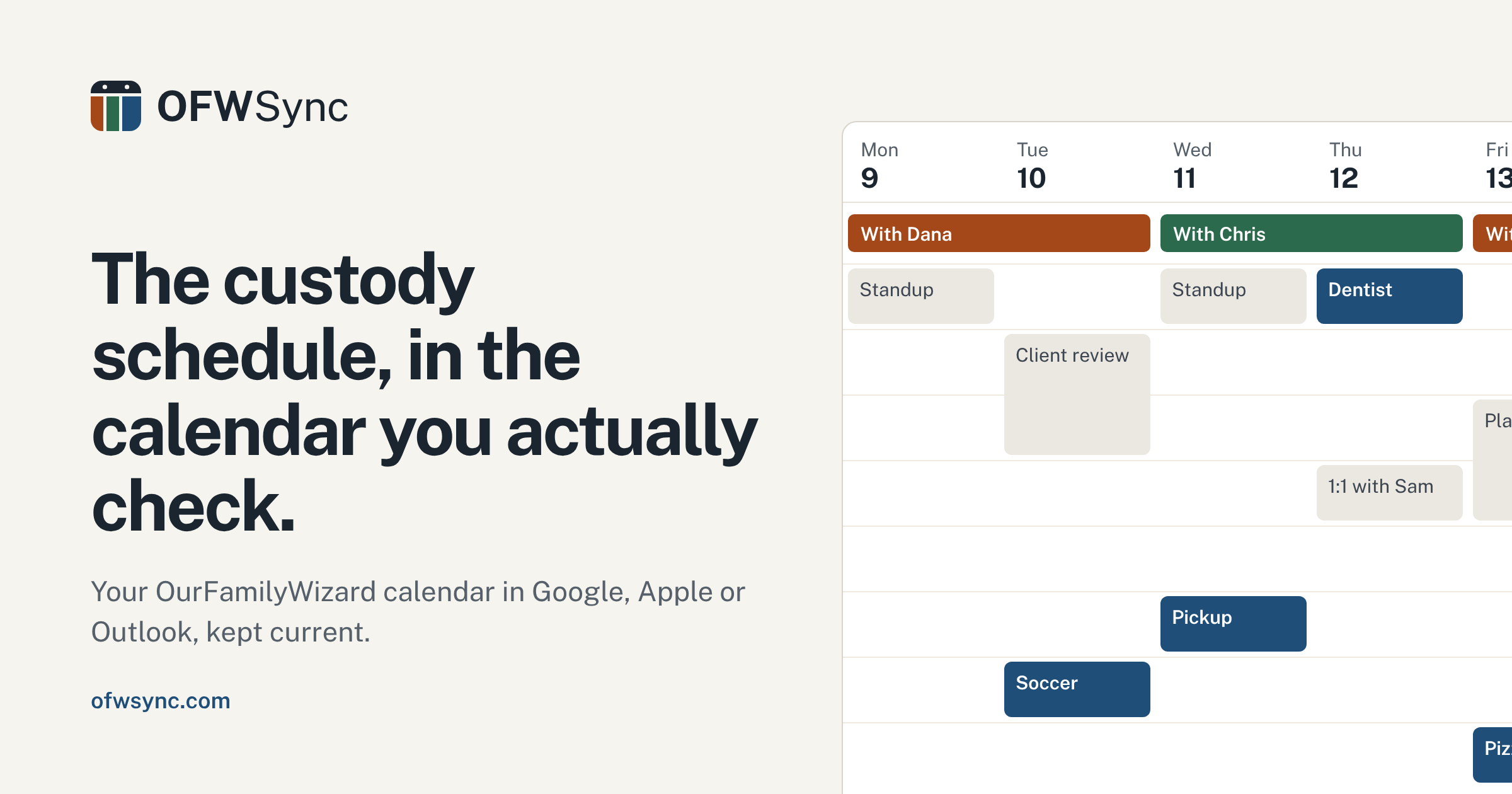
Want your custody schedule in Google, Apple, or Outlook without sharing anything else? OFWSync creates a private, read-only feed that updates itself. Start your 7-day free trial.
Frequently Asked Questions
Q1: How can I share a custody calendar without sharing personal details?
Use a separate, read-only calendar containing only the kids' schedule.
Q2: Can I sync OurFamilyWizard to Google Calendar read-only?
Yes, through a private subscription feed added under "From URL."
Q3: What is the best way to share a parenting schedule calendar?
Subscribe everyone to one read-only feed instead of sharing your personal calendar.
Q4: Is there a read-only calendar sync for co-parents?
Yes. OFWSync creates a read-only feed from OurFamilyWizard.
Q5: How does OFWSync keep custody schedules private?
The feed is a private link showing only calendar entries, never messages or expenses, and you can replace the link at any time.
Q6: How do I add a shared custody calendar to Apple Calendar?
Choose File > New Calendar Subscription and paste the feed URL.
Q7: Can I share custody exchanges with a babysitter or grandparent?
Yes, the same read-only link works for anyone you trust.
Q8: What custody calendar apps sync with Outlook?
Any feed-based service, including OFWSync, subscribes via "Add calendar > Subscribe from web."
Conclusion
A custody calendar can be shared without exposing the rest of your life. Keep OurFamilyWizard as the record of truth, especially when a court order names it, and treat your synced calendar as a convenience copy. Add the feed as a separate calendar, never an import, and choose what crosses over: parenting time, handoffs, and events, nothing private. Treat the feed link like a password, and edit in OurFamilyWizard so the official record stays accurate. A read-only feed keeps everyone, co-parents, grandparents, babysitters, on the same schedule. To compare other options, see our roundup of co-parenting calendar apps for 2026.