9 min read
How to Sync OurFamilyWizard With Google Calendar
Sync OFW with Google Calendar in a few clear steps so custody events, exchanges, and parenting time stay accurate on every device you use.
The OFWSync team
Quick Summary: OurFamilyWizard does not push a live calendar feed to Google Calendar on its own, so you need a bridge service to keep both views in step. OFWSync reads your OFW schedule and republishes it as a read-only iCalendar feed, with parenting time as all-day "With [parent]" blocks plus short handoff events. After signing up, you subscribe to the feed URL once through Google Calendar's desktop settings, then events flow in automatically, though Google refreshes subscribed calendars on its own schedule of several hours to a day. Use the Lite plan for fixed court orders and the Plus plan with hourly checks if you trade weekends often, and always make schedule changes inside OFW so the legal record stays accurate.
If you live in Google Calendar but your custody rotation lives in OurFamilyWizard, you've probably had both tabs open on a Sunday night, retyping next week's pickups by hand. The good news: you can sync OFW with Google Calendar once, in about ten minutes, and stop redoing it every week.
This guide walks through the exact steps, from connecting your OurFamilyWizard calendar to subscribing to the feed inside Google Calendar on a desktop browser. You'll also learn how Google's refresh lag works, so a last-minute trade shows up on time (and what to do when it doesn't). Each option below is matched to a real custody setup, whether you run on a set schedule or trade weekends on the fly.
Table of Contents
- Step 1: Can OurFamilyWizard Actually Sync With Google Calendar?
- Step 2: Create Your OFWSync Account and Connect OurFamilyWizard
- Step 3: Add the OFWSync Feed to Google Calendar
- Step 4: Wait for the First Sync and Verify the Feed
- Step 5: Keep It Working Day to Day
- Frequently Asked Questions
- Conclusion
Step 1: Can OurFamilyWizard Actually Sync With Google Calendar?
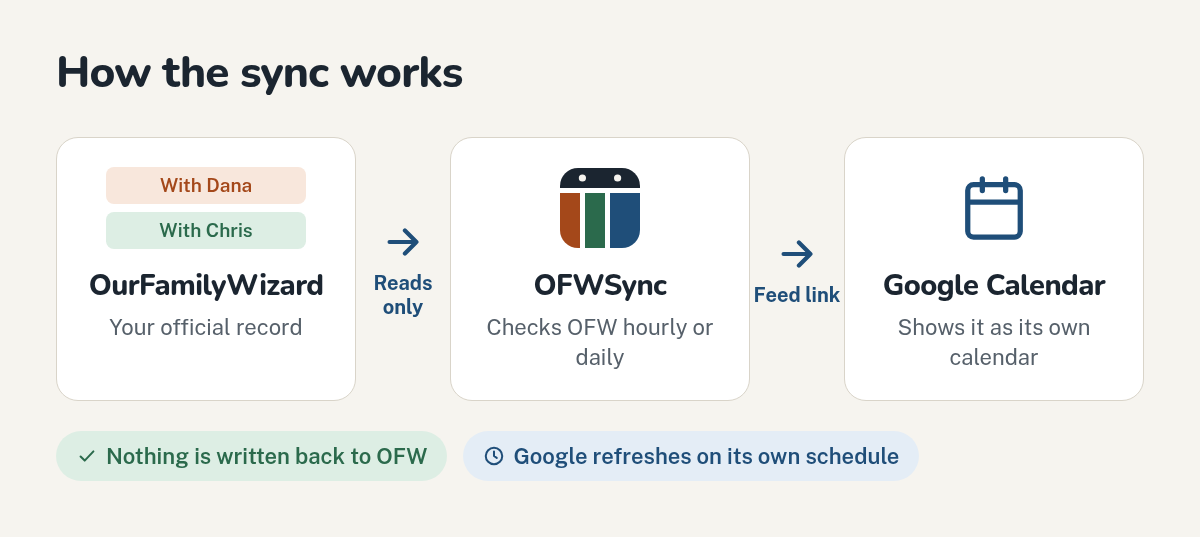
Short answer: not on its own. OurFamilyWizard has no built-in feature that pushes your custody calendar into Google Calendar as a live feed. You can export an .ics file from the OFW website, but that is a one-time snapshot, not a sync. To sync OFW with Google Calendar and keep it current, you need a third-party service that reads your OFW calendar and republishes it as a subscribable feed.
What you get (and what you don't)
Done right, parenting time, approved trades, and shared OFW events appear in Google Calendar automatically. You view them on your phone, but you never edit them there. It is read-only, and that matters: OFW is your legal record, so changes must happen inside OFW, not in Google. Also expect a lag. Google refreshes subscribed calendars on its own schedule, often every several hours to a day, so brand-new trades may not show up instantly. Anyone who wants to sync OFW with Google Calendar should plan around that delay rather than fight it.
Why a third-party tool and not OFW itself
OurFamilyWizard works the other direction. You can import outside calendars into OFW, but OFW offers no live outgoing feed for Google to subscribe to. That single gap explains every workaround in this guide. Services like OFWSync and CoParentCal fill it by turning your OFW calendar into an iCalendar feed. OFWSync does it read-only, so your OFW account stays untouched. If you're weighing your options, this comparison of co-parenting calendar apps covers how the tools differ.
Step 2: Create Your OFWSync Account and Connect OurFamilyWizard
Sign up and link in about two minutes
Head to OFWSync and create an account. The whole signup takes about two minutes. You will connect OurFamilyWizard by entering the email and password you already use there. OFWSync checks them with OFW right away and stores them encrypted. It never posts messages or changes anything in your OFW account; it only reads the calendar.
After you link the account, OFWSync runs your first sync. Wait for that to finish before moving on to Step 3; your feed link appears once it's done. You can start with the 7-day free trial and decide on a plan later; current plans are listed on the pricing page.
Pick what shows up on your Google Calendar
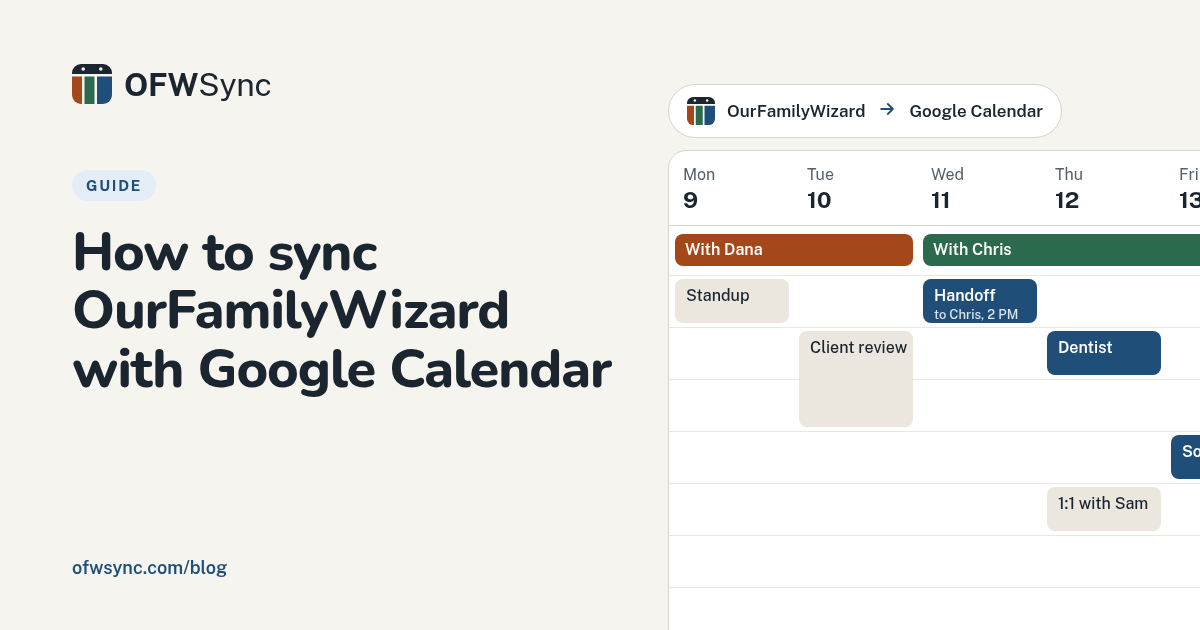
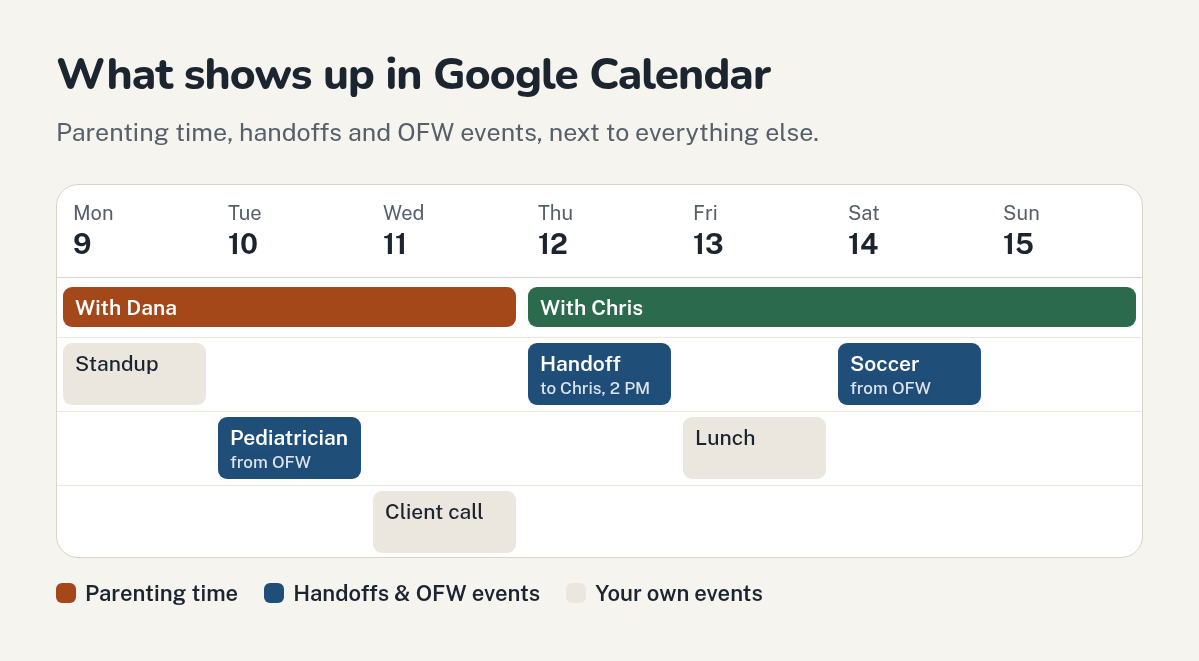
OFWSync does not send a raw dump of your OFW calendar. Parenting time appears as all-day blocks named for whoever has the children, like "With Dana," so you can scan a month at a glance. When exchanges happen mid-day, you also get a short "Handoff to …" event at that time.
Approved trades and OFW calendar events, like appointments or activities, sync alongside the schedule. In your feed settings you can turn parenting time, handoffs, and events on or off, and rename each household the way you'd say it out loud. That mix covers both common custody situations: a fixed pattern you never think about, and last-minute swaps you need confirmed fast. Once the feed is live, you just subscribe to it in Google Calendar, which we cover next.
Step 3: Add the OFWSync Feed to Google Calendar
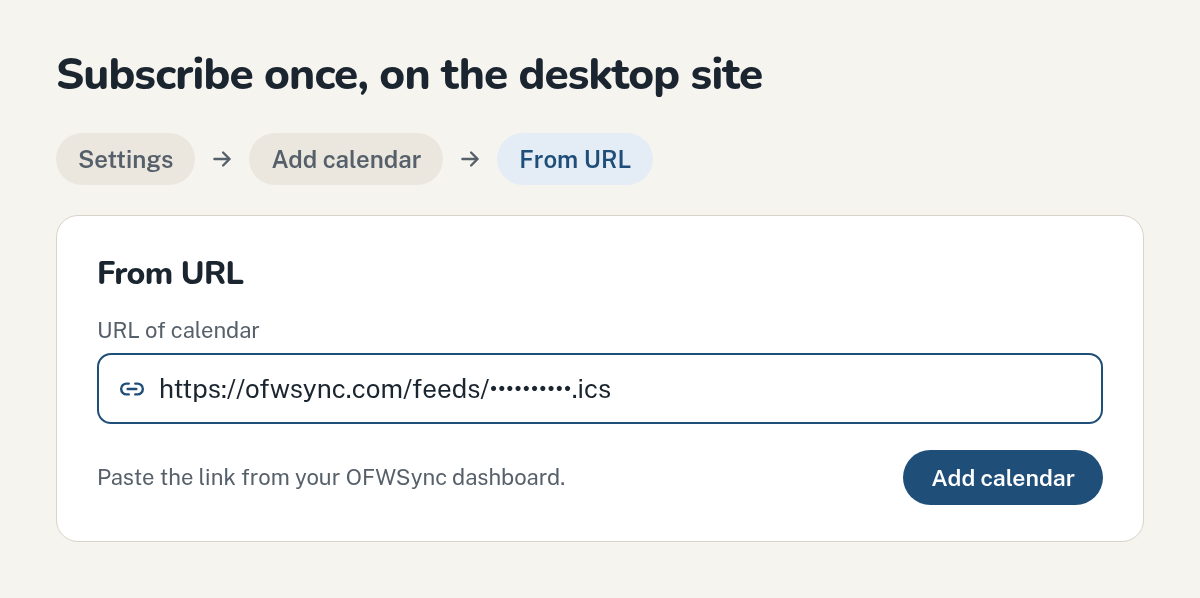
After your first sync, OFWSync hands you a feed link. That link is your parenting schedule as a calendar, so now Google needs to subscribe to it. You only do this once on the desktop website.
The exact menu path in Google Calendar
Copy the feed link, then open calendar.google.com in your browser and sign in.
- Click the gear icon, then Settings.
- In the left column, choose Add calendar.
- Click From URL.
- Paste the OFWSync feed link into the box.
- Click Add calendar. Google imports it within a minute or so.
Back on your main calendar view, the feed appears under Other calendars in the left sidebar. It can take a little longer to show up in the mobile app, which is normal.
Name it, colour it, hide it whenever you need
Click the three dots next to the calendar in the sidebar and pick Settings. There you can change the name and choose a colour you will not confuse with work or school calendars. A distinct shade, say orange, makes parenting time easy to spot in a busy week. You can also untick the checkbox to hide it without deleting anything.
Why the mobile Google Calendar app is tricky
Google does not let you add a URL-based calendar from the phone app itself. The subscription must be created on the desktop website first. After that, the calendar syncs to your phone automatically, though Google refreshes subscribed calendars on its own schedule, often every several hours to a day.
Step 4: Wait for the First Sync and Verify the Feed
Once you subscribe to the feed URL, give it a moment. OFWSync pulls your schedule from OurFamilyWizard first, then Google pulls from OFWSync. Two steps, two waits.
What 'working' looks like in your Google Calendar
Open Google Calendar on your computer and check the left sidebar. Your new feed should appear as a calendar under your subscribed list, with a colored checkbox. When events load, parenting time shows up as all-day "With [parent]" blocks. If you have a mid-day exchange, look for a short "Handoff to [parent]" event at that time. Shared events from OFW, like a school appointment one parent added, appear alongside those blocks. Nothing should ask you to confirm or edit anything. The feed is read-only, so you can view and overlay it, but you cannot change events in Google and have that change reach OurFamilyWizard.
How long Google's refresh actually takes
This part trips people up. Google refreshes subscribed calendars on its own schedule, and you cannot change that timing. The wait is usually several hours, and it can stretch to a day, so a change that hasn't appeared yet does not mean the feed failed. That lag is Google's, not OFWSync's: the service can only update the feed it publishes, since Google never lets outside tools control when a subscription refreshes. On the Plus plan, hourly checks plus the Sync now button keep the feed itself fresh, but Google still decides when it looks.
Check back the next morning before assuming anything is broken.
Step 5: Keep It Working Day to Day
Once the feed is in Google Calendar, there is little left to do. The sync runs on its own, and OFW changes flow in without you touching anything. Just check that new entries show up after a schedule change.
Lite vs Plus for different custody rhythms
Pick the plan that matches how often your schedule actually changes. Lite checks OurFamilyWizard once a day and costs $3 per month or $30 per year. That works well for a fixed court order where custody days rarely move. Plus checks every hour, costs $5 per month or $40 per year, and adds a "Sync now" button, so it suits families with frequent trades, make-up time, or last-minute swaps. If you regularly agree to a Friday-for-Sunday trade by text, waiting for Lite's daily check can leave you looking at a stale calendar. Current prices sit on the pricing page, and the free trial lets you test either pace.
Resetting the link or changing what syncs
If events stop appearing, start in your OFWSync dashboard and confirm the connection to OurFamilyWizard is still live. A changed OFW password is the usual cause; enter the new one in OFWSync and the next sync picks up where it left off. You can change what comes across, or create a new feed link if the old one was shared too widely, from your feed settings. If you create a new link, remove the old calendar in Google (its settings page has an Unsubscribe option) and add the new link with From URL.
Tired of retyping every custody swap into Google Calendar? OFWSync turns your OurFamilyWizard schedule into a read-only feed that updates on its own. Start the 7-day free trial today and see how much simpler pickups and exchanges feel.
Frequently Asked Questions
Q1: Can OurFamilyWizard calendar sync with Google Calendar?
Not directly. OFW has no outgoing live feed, so you need a service like OFWSync to turn the calendar into a subscribable link.
Q2: Why don't new trades show up right away?
Google refreshes subscribed calendars on its own schedule, often every several hours to a day.
Q3: Can I add the feed from my phone?
No. Subscribe on the desktop website first; it then syncs to your phone automatically.
Q4: Can I edit synced events in Google Calendar?
No. The feed is read-only. Make changes inside OurFamilyWizard so they stay in the legal record.
Q5: Which plan suits a fixed custody schedule?
Lite, at $3 monthly, checks OFW once daily, which suits set schedules. Frequent traders benefit from Plus.
Conclusion
Syncing OurFamilyWizard with Google Calendar takes three moves: link your OFW account through OFWSync, subscribe to the feed URL on Google Calendar's desktop site, then let the events flow in. Parenting time shows up as all-day blocks, and approved trades and shared events land alongside them. Just remember two limits: subscribe from a desktop browser, not the phone app, and expect Google's refresh lag of several hours to a day before changes appear. The read-only feed keeps OFW as your legal record, while Google stays your everyday view. Lite suits fixed court orders; Plus with hourly checks fits families who trade weekends on short notice. For a deeper look at how sync tools compare, see this breakdown of OFWSync vs CoParentCal.